Connect WhiteBIT to ArbLens
Monitor balances, positions, and transaction history securely using Read-Only API access.
Open API Keys
Log in to your WhiteBIT account.
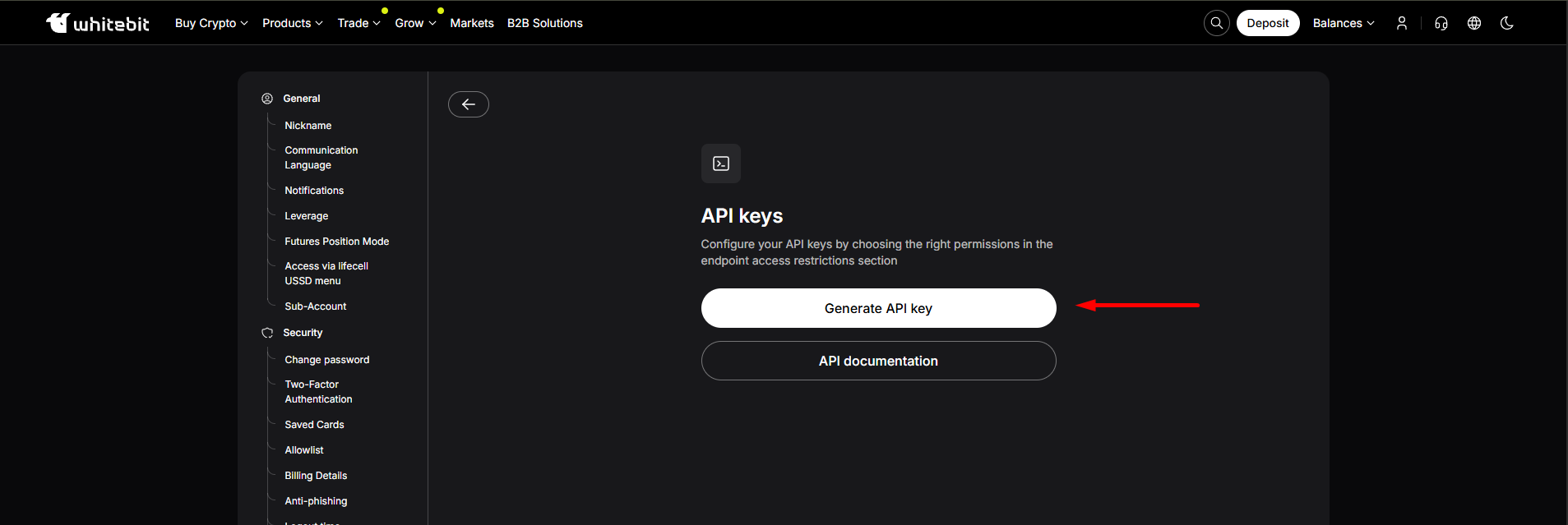
Go to Settings → API keys and click Generate API key.
Create the API Key
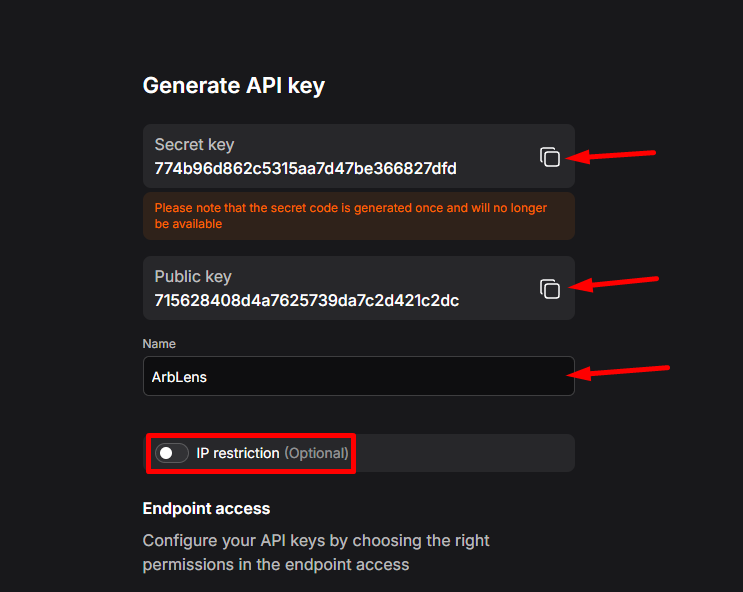
On the Generate API key page:
Name: ArbLens
IP restriction: optional
Copy the Secret key and Public key when they are generated.
The Secret key is shown only once. Save it securely before leaving the page.
Configure Endpoint Access
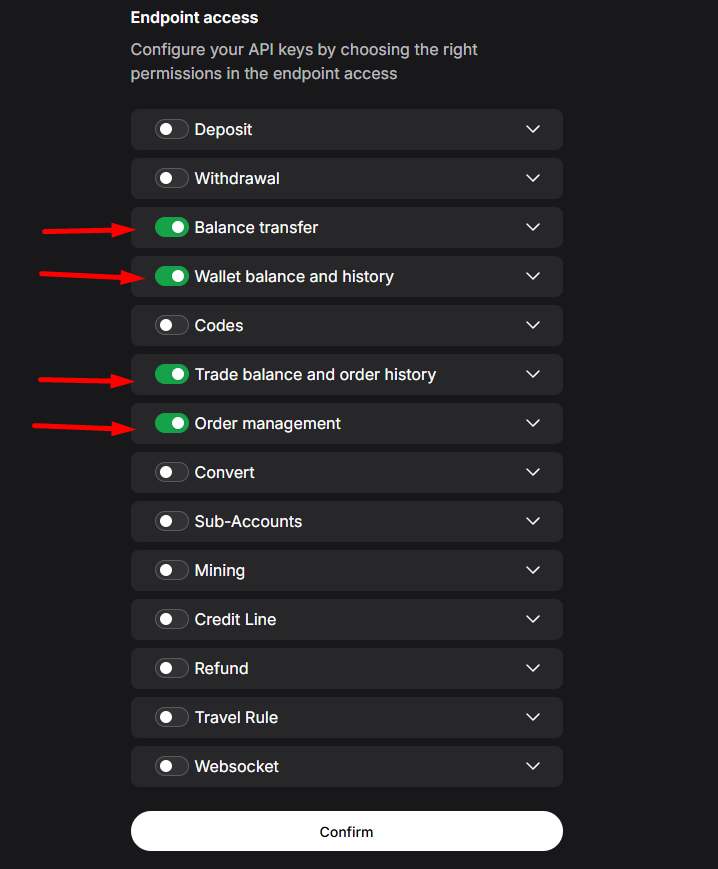
Enable only the following permissions:
Wallet balance and history — ON
Trade balance and order history — ON
Keep all other permissions OFF, including: Deposit, Withdrawal, Balance transfer, Codes, Order management, Convert, Sub-Accounts, Mining, Credit Line, Refund, Travel Rule, Websocket.
Do not enable Balance transfer or Order management. These permissions are not required for ArbLens and can provide account-changing capabilities.
Complete 2FA Verification
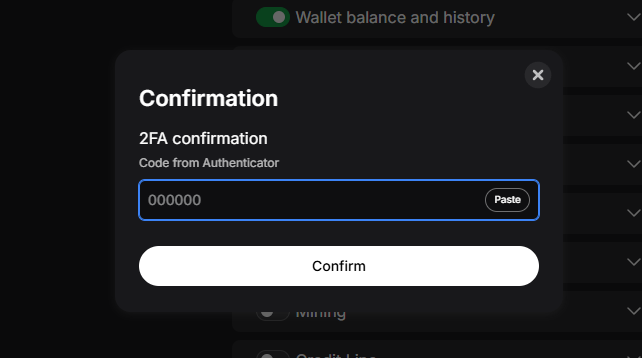
Enter the 6-digit code from your Authenticator app.
Click Confirm.
Connect WhiteBIT to ArbLens
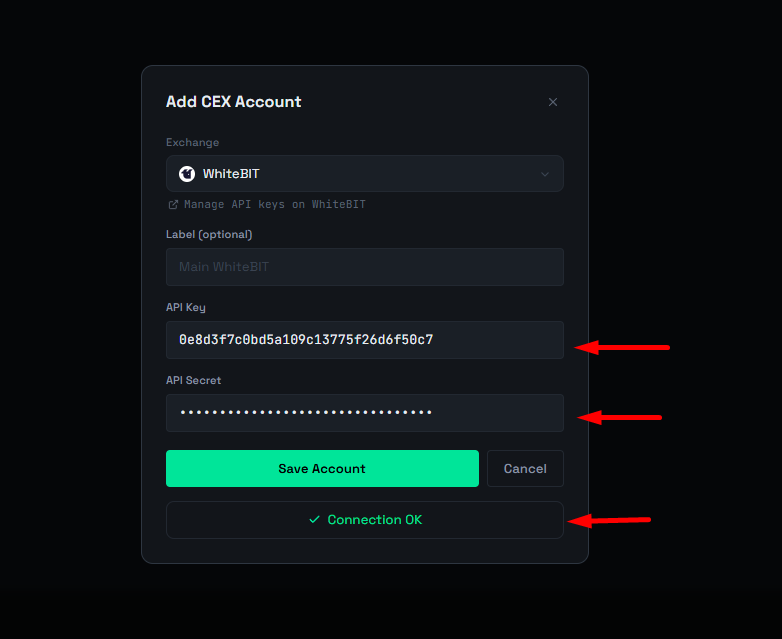
In ArbLens, open Add CEX Account and select WhiteBIT.
Fill in:
Label: optional, e.g. Main WhiteBIT
API Key: paste the WhiteBIT Public key
API Secret: paste the WhiteBIT Secret key
Click Save Account.
A successful connection will show Connection OK.
ArbLens uses your API credentials exclusively to retrieve account information. With Read-Only permissions, ArbLens cannot:
- Execute trades
- Place or cancel orders
- Withdraw funds
- Transfer assets
- Deposit funds
Your assets always remain under your control.