Connect Phemex to ArbLens
Monitor balances, positions, and transaction history securely using Read-Only API access.
Open API Management
Log in to your Phemex account.
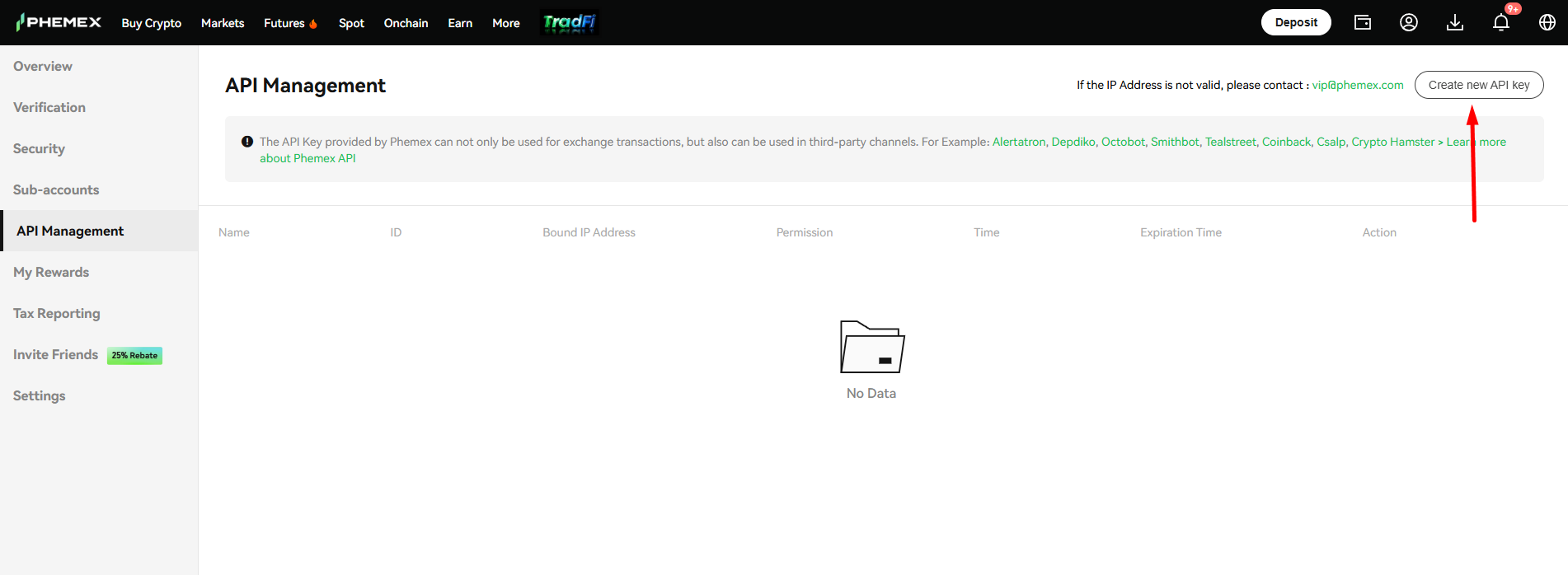
Go to Account → API Management and click Create new API key.
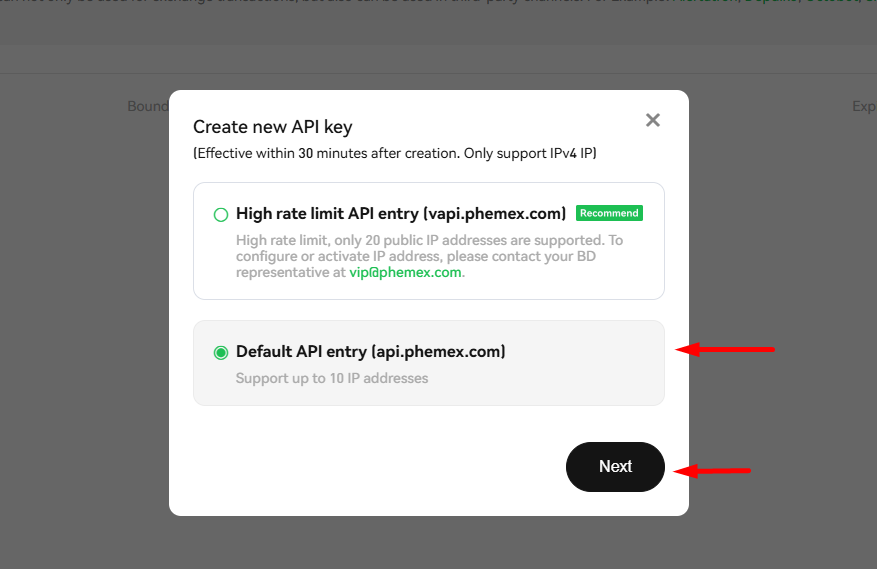
Select API Type
Choose Default API entry (api.phemex.com).
Click Next.
The High Rate Limit API is intended for higher API request limits. The Default API entry is sufficient for connecting Phemex to ArbLens.
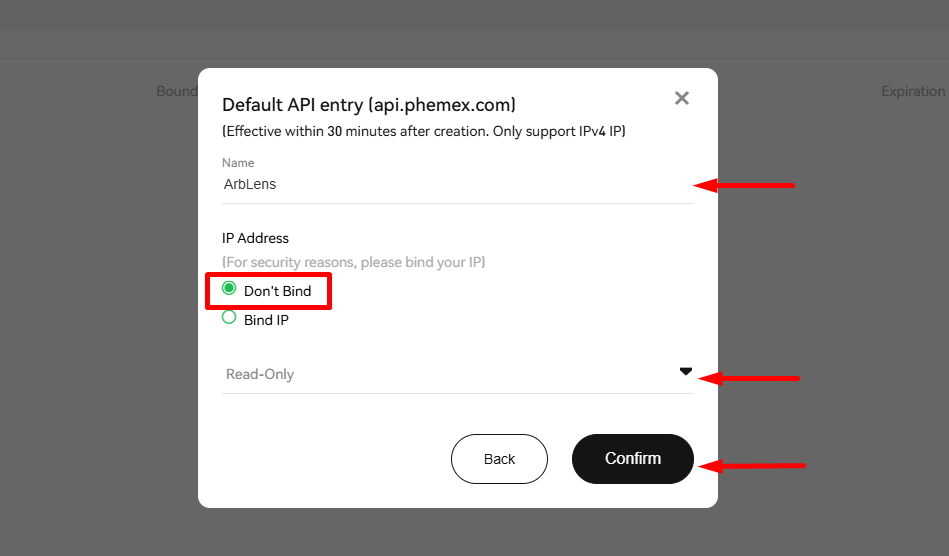
Configure the API Key
In the Default API entry window:
Name: ArbLens
IP Address: select Don't Bind
Permission: select Read-Only
Click Confirm.
If you have a trusted static IP and Phemex has enabled IP binding for your account, you can use Bind IP instead. For a standard ArbLens connection, select Don't Bind.
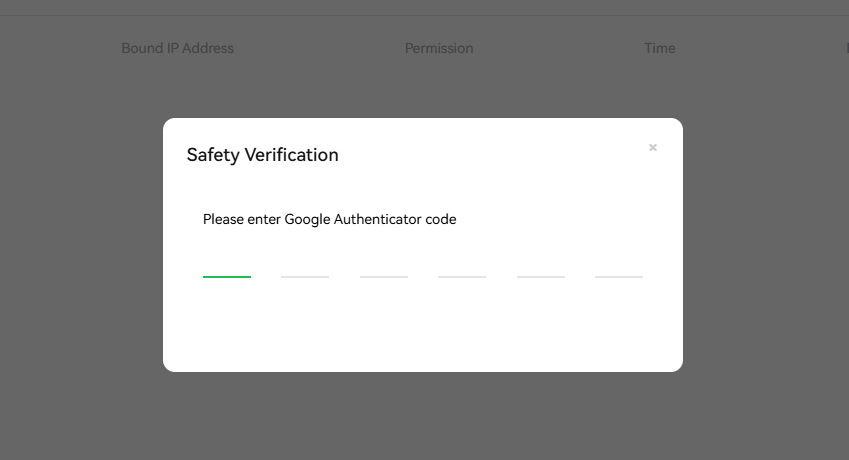
Complete Security Verification
Enter the Google Authenticator code requested by Phemex.
Phemex states that newly created API keys become effective within approximately 30 minutes.
Copy Your API Credentials
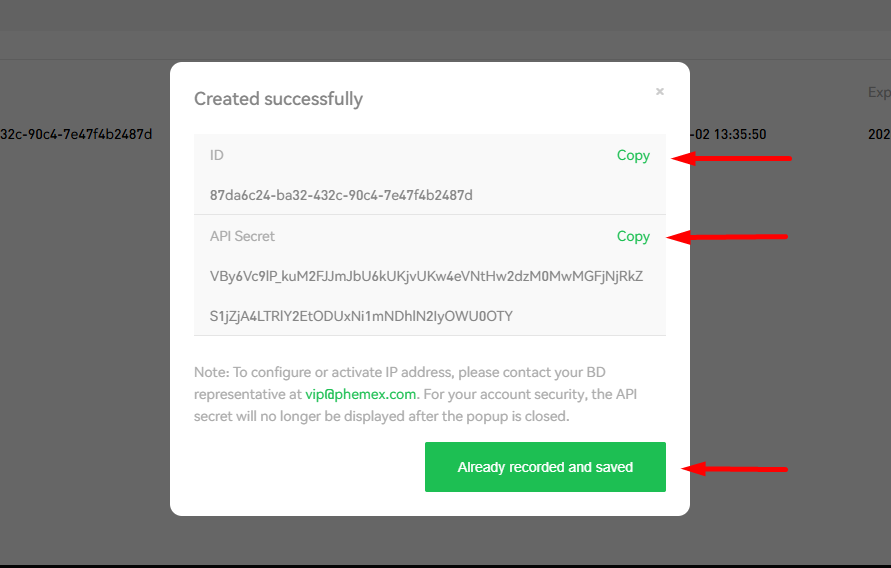
After the API key is created, Phemex will display:
ID — use this as the API Key in ArbLens
API Secret — use this as the API Secret in ArbLens
Click Copy for both values, then click Already recorded and saved.
The API Secret is displayed only once. Save it securely before closing the window.
Connect Phemex to ArbLens
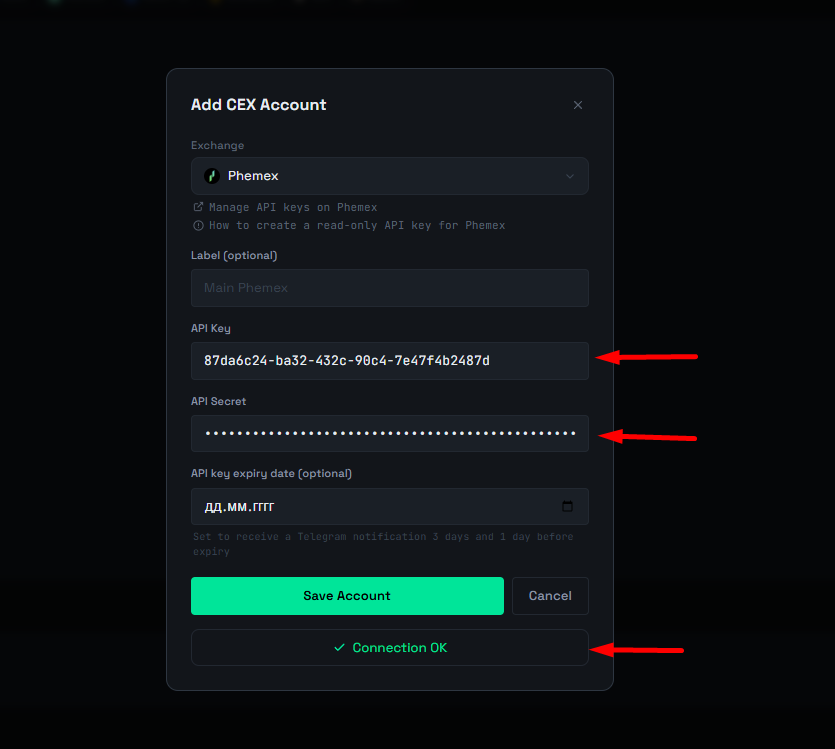
In ArbLens, open Add CEX Account and select Phemex.
Fill in:
Label: optional, e.g. Main Phemex
API Key: paste the Phemex ID
API Secret: paste the Phemex API Secret
Click Save Account.
A successful connection will show Connection OK.
ArbLens uses your API credentials exclusively to retrieve account information. With Read-Only permissions, ArbLens cannot:
- Execute trades
- Place or cancel orders
- Withdraw funds
- Transfer assets
Your assets always remain under your control.