Connect CoinEx to ArbLens
Monitor balances, positions, and transaction history securely using Read-Only API access.
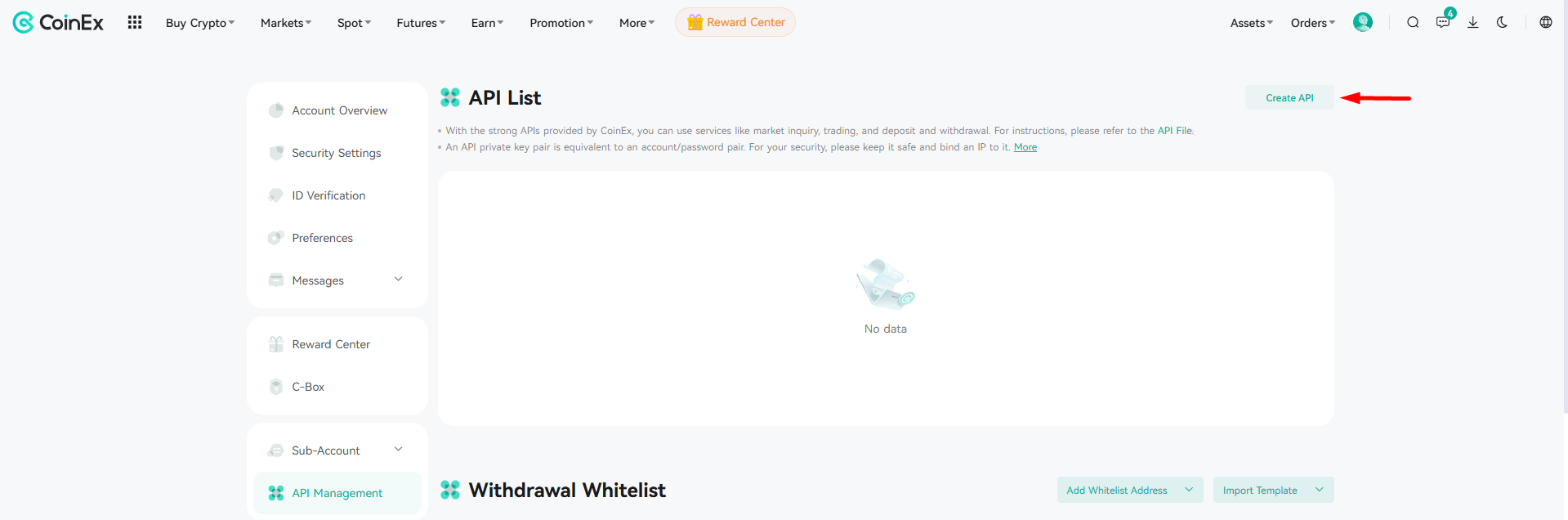
Open API Management
Log in to your CoinEx account.
Open your account menu and select API Management.
Click Create API.
Configure API Permissions
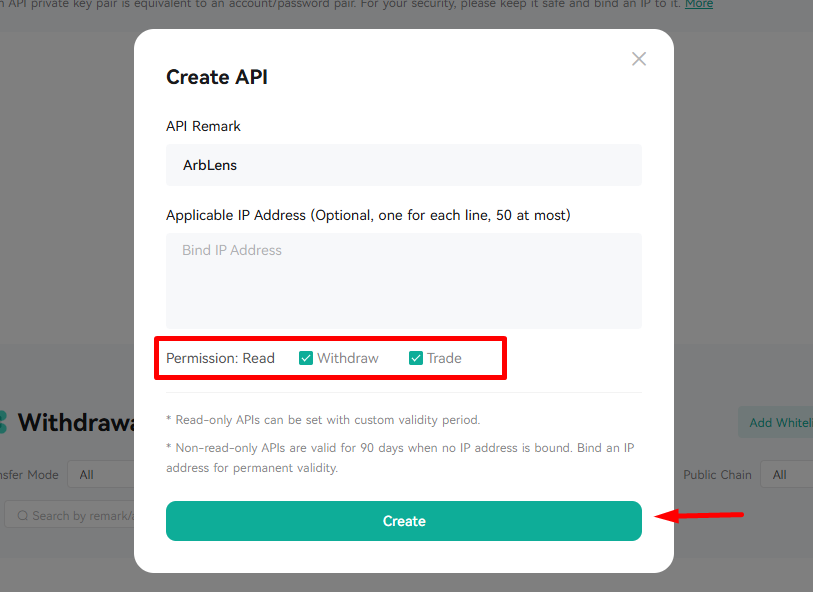
Enter an API Remark. We recommend: ArbLens
Under IP Address, you can optionally bind the key to a trusted IP address. If you have a dedicated static IP for ArbLens, enter it here. Otherwise, leave the field empty.
Under Permissions, select Read only.
Make sure Withdraw and Trade remain disabled.
Click Create.
Do not enable Withdraw or Trade. ArbLens only needs read access to synchronize your account data. CoinEx states that API keys without a bound IP address are valid for 90 days. Binding a fixed IP address provides permanent validity.
Complete 2FA Verification
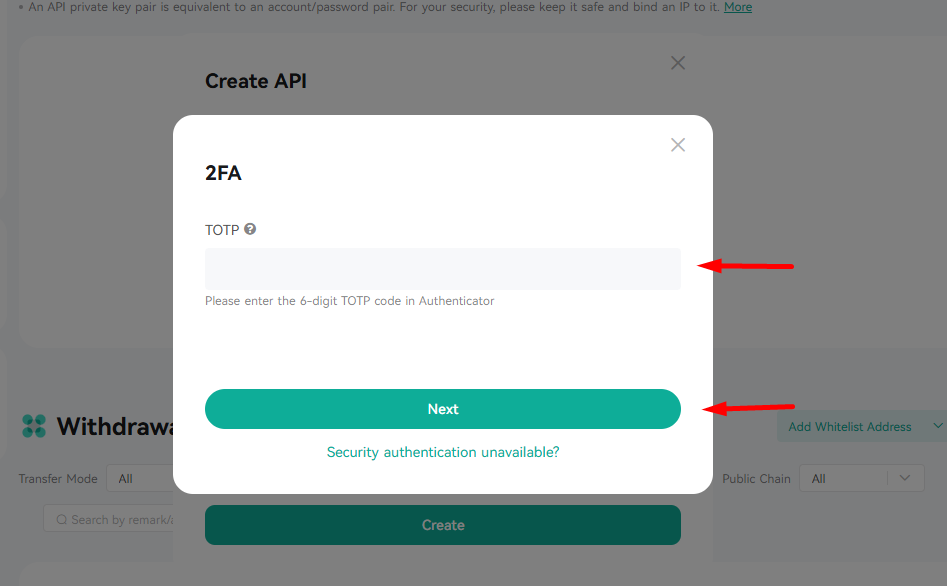
Enter the 6-digit TOTP code from your authenticator app.
Click Next.
Copy Your API Credentials
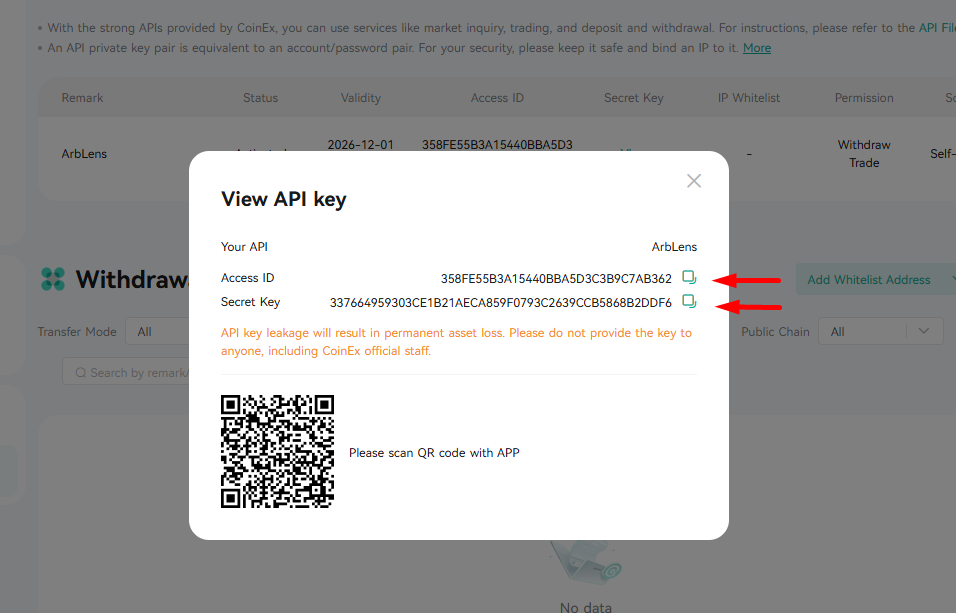
After successful verification, CoinEx will display your API credentials.
Copy both the Access ID and the Secret Key.
Keep your Access ID and Secret Key secure. Do not share them with anyone. This is the only time CoinEx displays the Secret Key.
Connect CoinEx to ArbLens
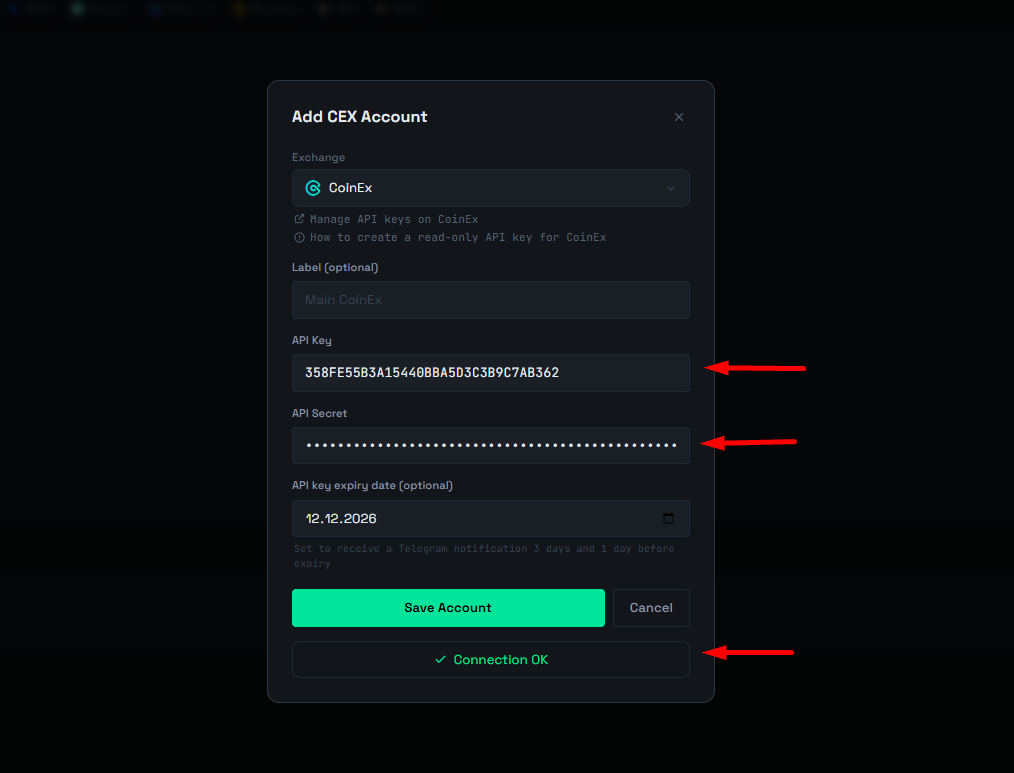
In ArbLens, click Add CEX Account.
Select CoinEx, enter your Label, API Key (Access ID), and API Secret (Secret Key), then click Save Account.
If the credentials and permissions are correct, you will see ✓ Connection OK.
ArbLens uses your API credentials exclusively to retrieve account information. With Read-Only permissions, ArbLens cannot:
- Execute trades
- Place or cancel orders
- Withdraw funds
- Transfer assets
Your assets always remain under your control.