Connect Bitget to ArbLens
Monitor balances, positions, and transaction history securely using Read-Only API access.
Open API Management
Log in to your Bitget account.
Go to Account → API keys.
Click Create API key.
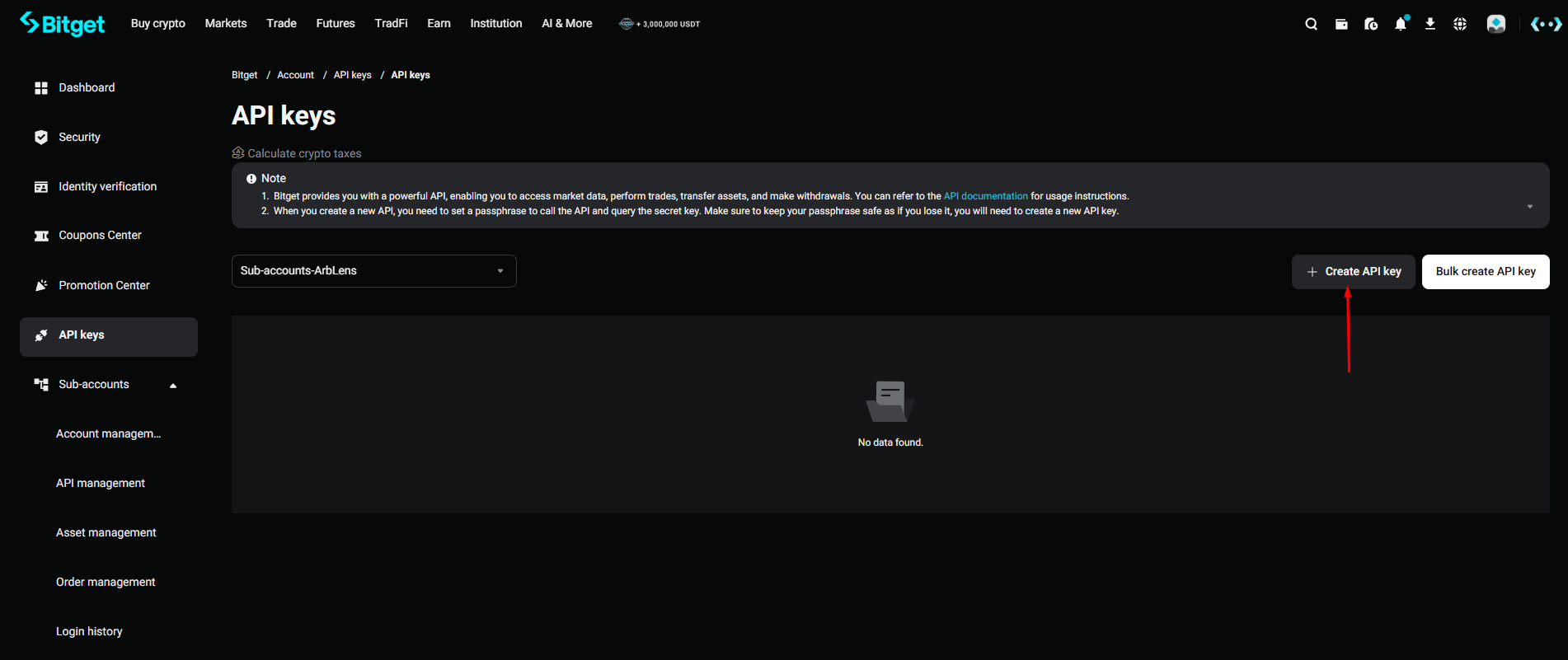
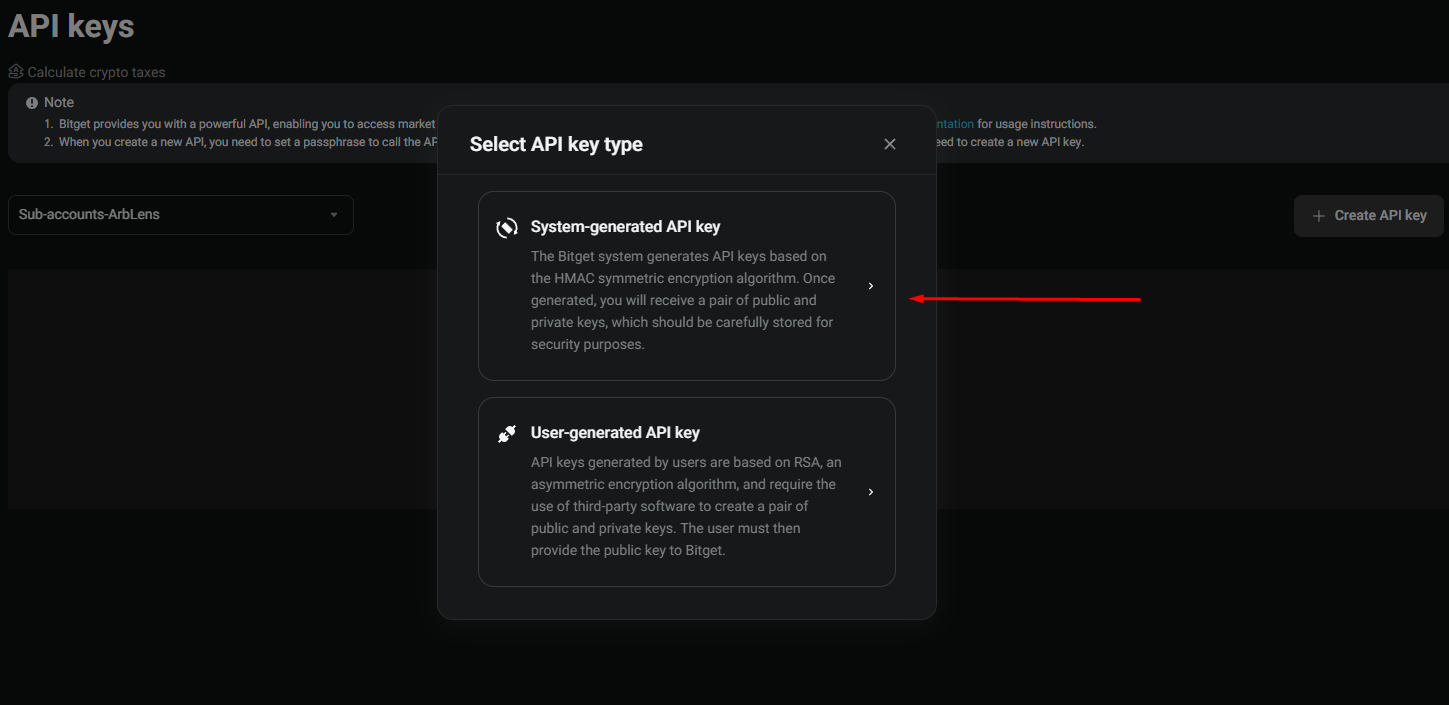
Select API Key Type
Select System-generated API key.
This option uses an API key generated by Bitget and is the simplest option for connecting your account to ArbLens.
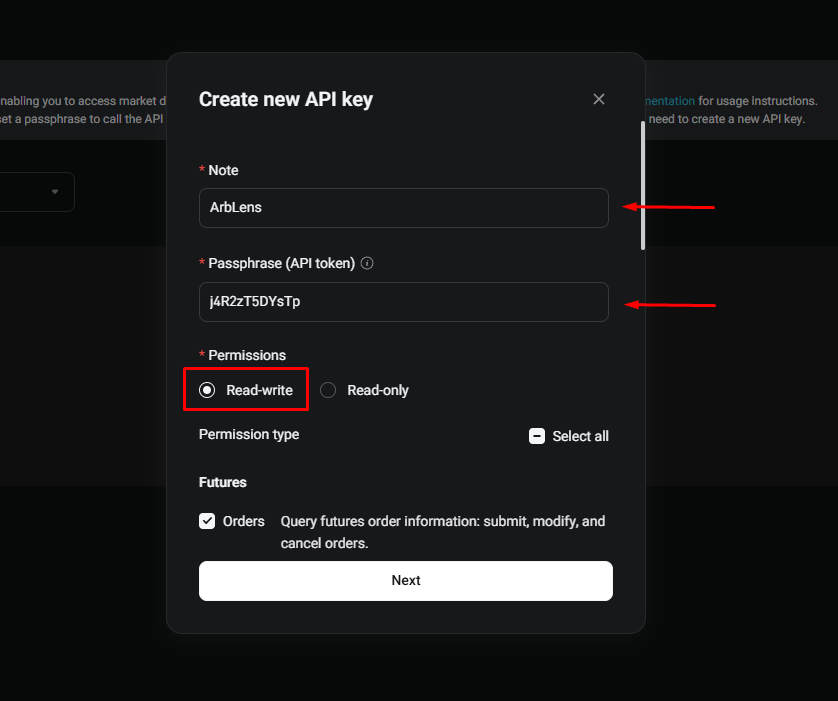
Configure the API Key
Enter a Note: ArbLens
Create an API Passphrase.
Under Permissions, select Read-only. Do not select Read-write.
The passphrase is created by you and cannot be recovered if lost. Save it securely — Bitget requires it together with the API Key and Secret Key.
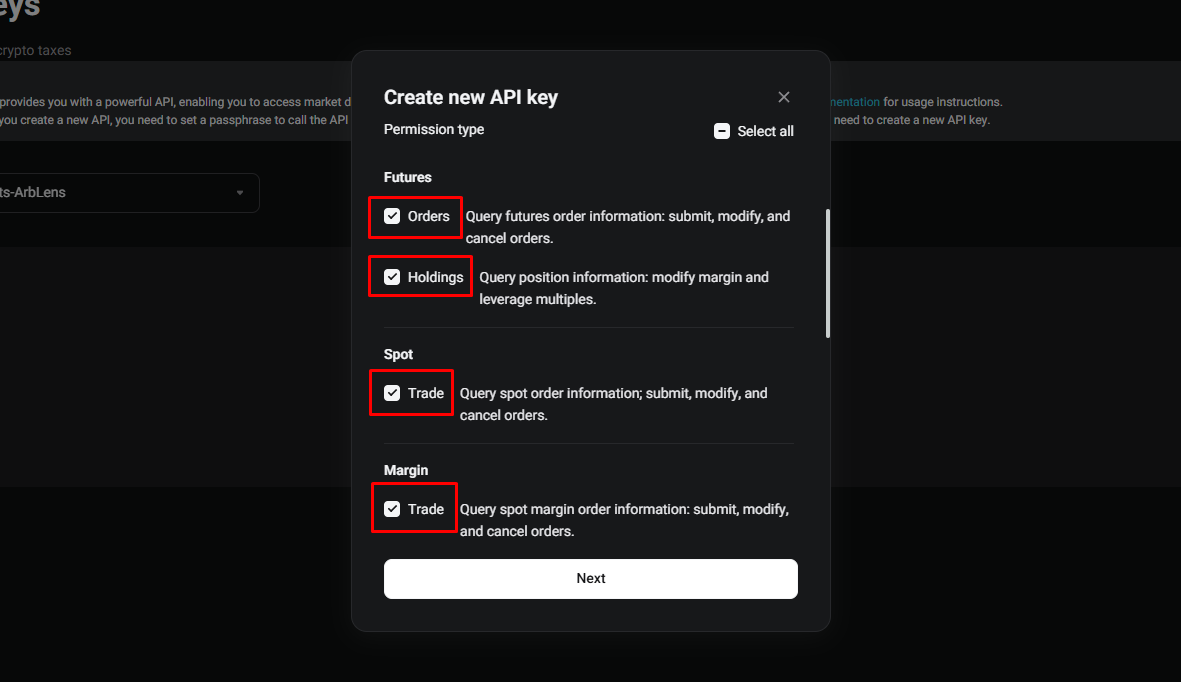
Select Futures, Spot, and Margin Permissions
With Read-only selected, enable the following permissions:
Futures → Orders, Holdings
Spot → Trade
Margin → Trade
Click Next.
Despite the names Orders and Trade, these permissions only provide read access when the API key is configured as Read-only.
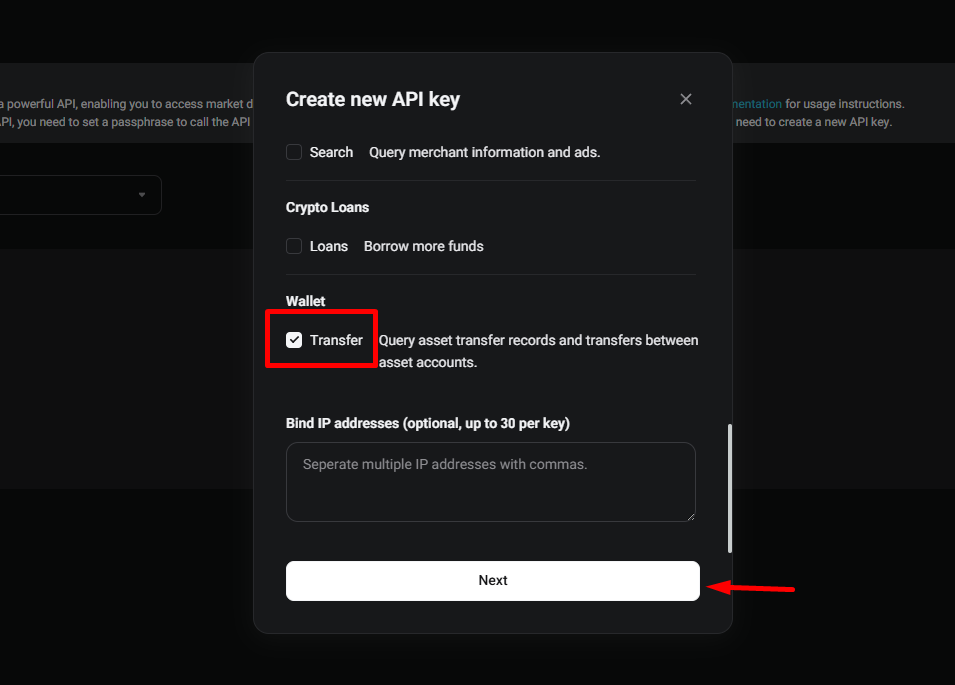
Configure Wallet Permissions
Under Wallet, enable: Transfer
This allows ArbLens to read your asset transfer records.
Do not enable Search, Crypto Loans, or any other permissions.
Leave Bind IP addresses empty unless you have a dedicated IP address available.
Click Next.
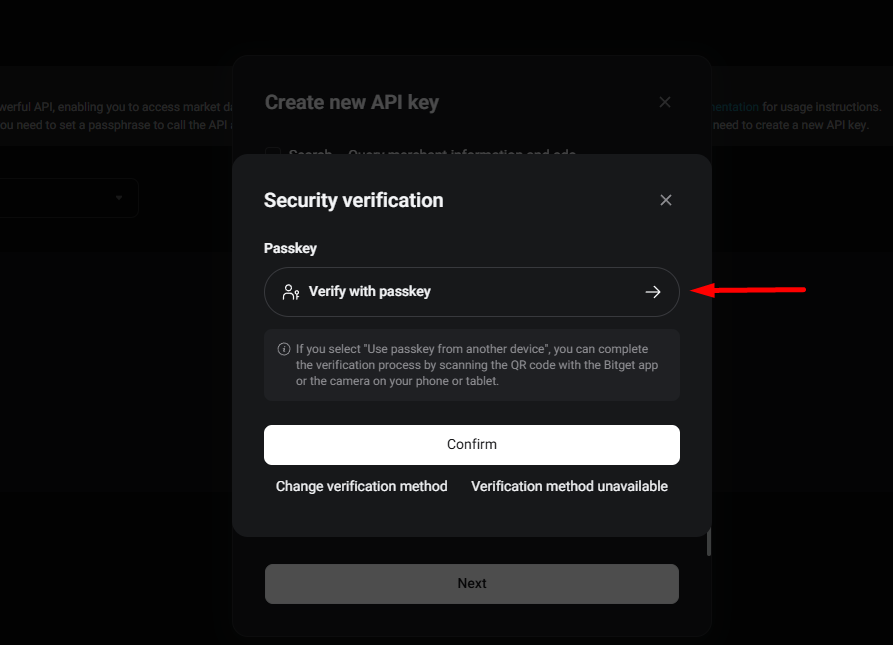
Complete Security Verification
Bitget will ask you to verify the API key creation.
Select Verify with passkey and complete the verification.
Click Confirm.
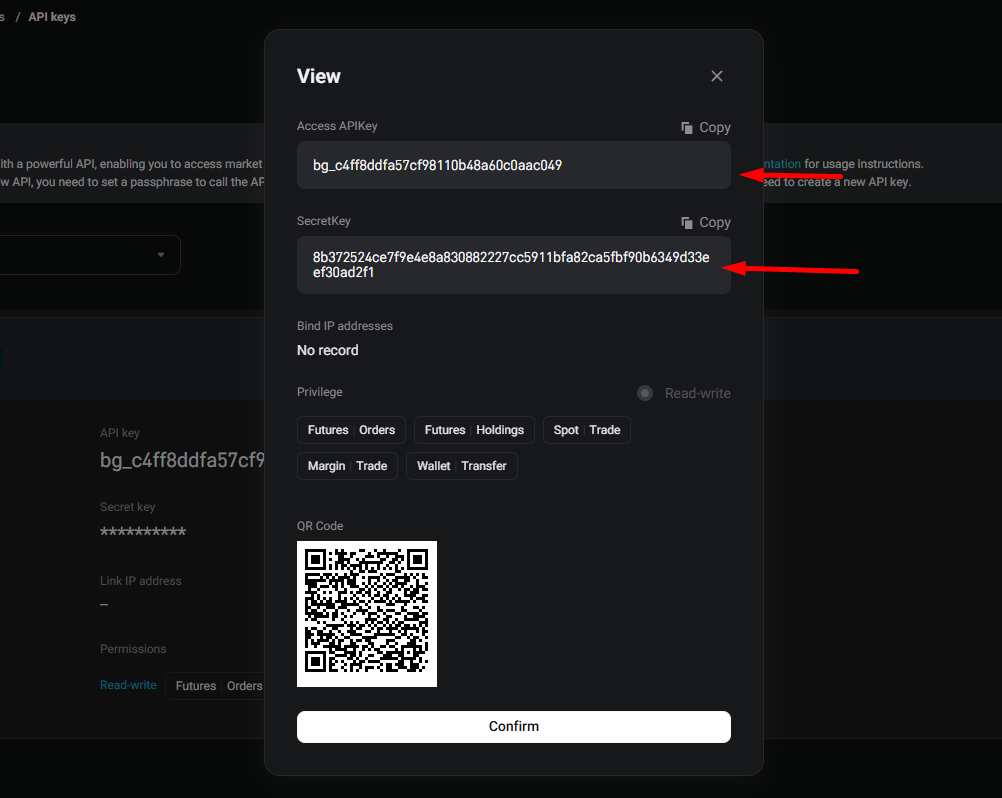
Copy Your API Credentials
After successful verification, Bitget will display your API credentials.
Copy: Access API Key, Secret Key, and Passphrase.
The Secret Key is only shown once. Save it securely before closing the window.
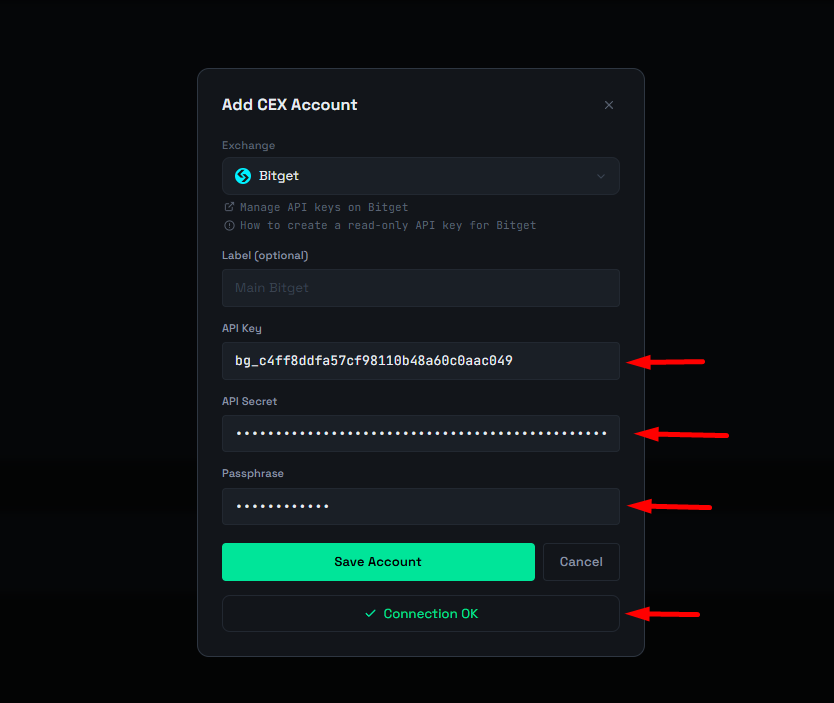
Connect Bitget to ArbLens
In ArbLens, click Add CEX Account.
Select Bitget, enter your Label, API Key, API Secret, and Passphrase, then click Save Account.
If the credentials and permissions are correct, you will see ✓ Connection OK.
ArbLens uses your API credentials exclusively to retrieve account information. With Read-Only permissions, ArbLens cannot:
- Execute trades
- Place or cancel orders
- Withdraw funds
- Transfer assets between accounts
Your assets always remain under your control.